Prevent users from accessing ZITADEL Management Console
ZITADEL includes a Management Console that allows administrators to configure all resources. By default, all users, including end users, can view and manage their profile information. In some cases, you may want to prevent users from accessing the Management Console. Common reasons include:
- User management is integrated into your own application.
- Users log in via SSO and should not be able to change their data in the Management Console.
- Only administrators should be able to access the Management Console to manage users.
While it is not currently possible to completely disable the Management Console, you can prevent users from accessing it by following the strategies described in this guide.
Self-hosted
If you are running a self-hosted instance of ZITADEL, we recommend restricting access to the Management Console via a Web Application Firewall (WAF) or reverse proxy for non-administrator users.
ZITADEL Cloud (and self-hosted)
Default redirect URI
One goal is to never send the end user to the ZITADEL Management Console. This is particularly useful if you have built your own user profile page within your application. In such cases, you likely want to redirect users to your own application instead of the console.
Read more about how to set the default redirect URI: Settings - Default Redirect URI
Prevent Settings Misconfiguration Lockouts
- Generate a backup PAT: Create a Service Account Personal Access Token with the
IAM_OWNERrole to revert any login UI misconfigurations using the API. - Add a second Instance Administrator: Always designate at least one second instance administrator.
Restricting Management Console in default-project
With this workaround, you will limit users from accessing the default-project if they are not explicitly granted access to it. When enabling the "Authentication is restricted to users from organizations that have been granted access to this project" setting on a project, only users from organizations with a Project Grant for that project can access it. By default, this setting is disabled, so all users can access the project.
Before a user can be authenticated, it is verified that their affiliated organization has been granted access to this project. Authentication is not permitted for users from unauthorized organizations.
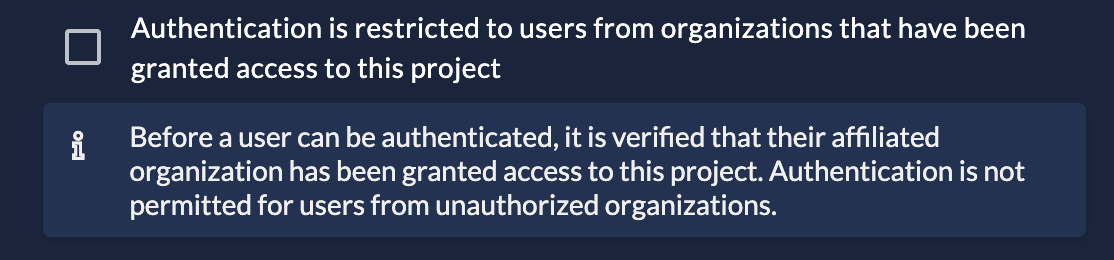
Start by granting the organization of your administrators access to the ZITADEL project (default project):
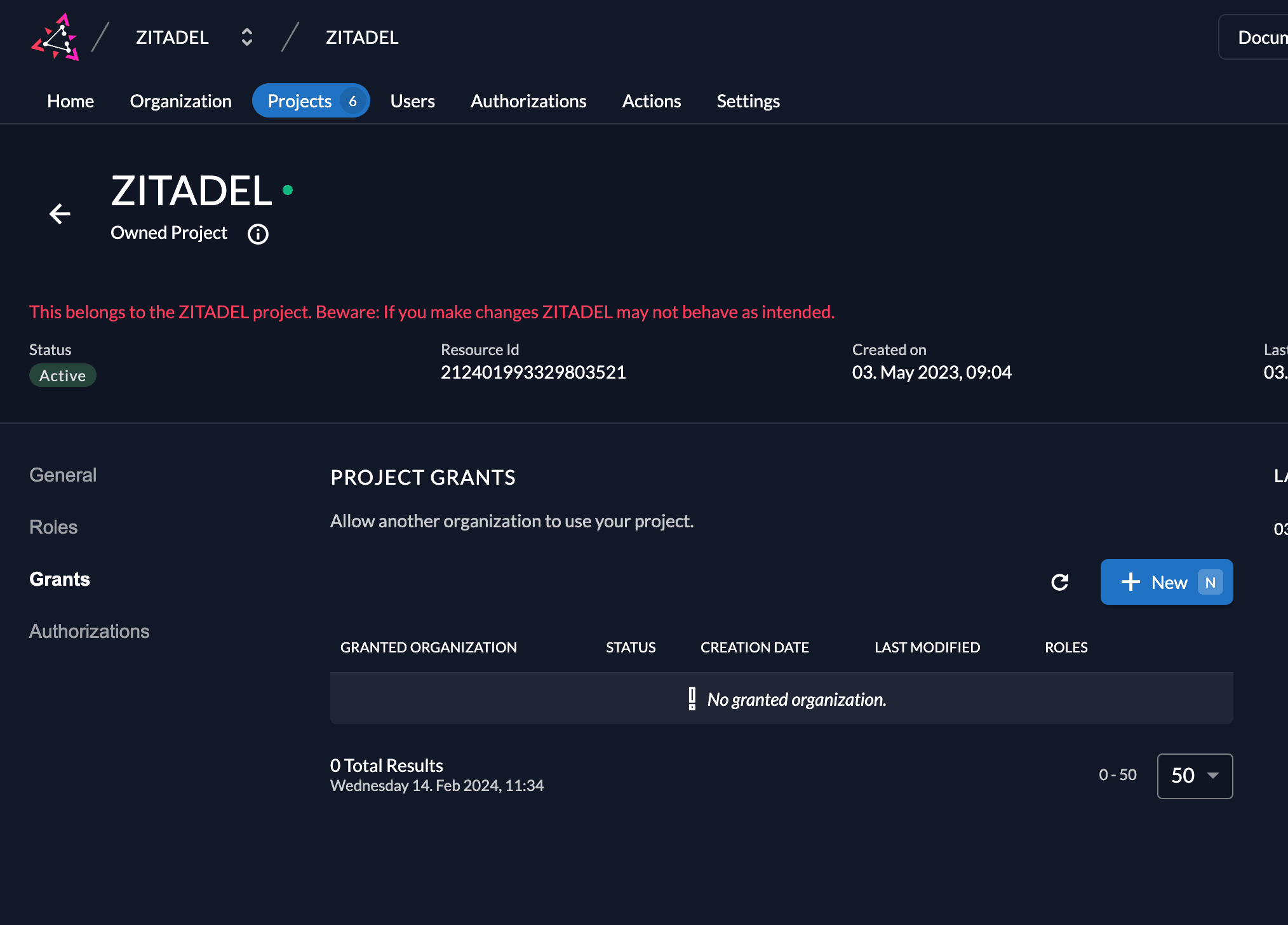
- Go to the ZITADEL project, select Project Grants, and click New.
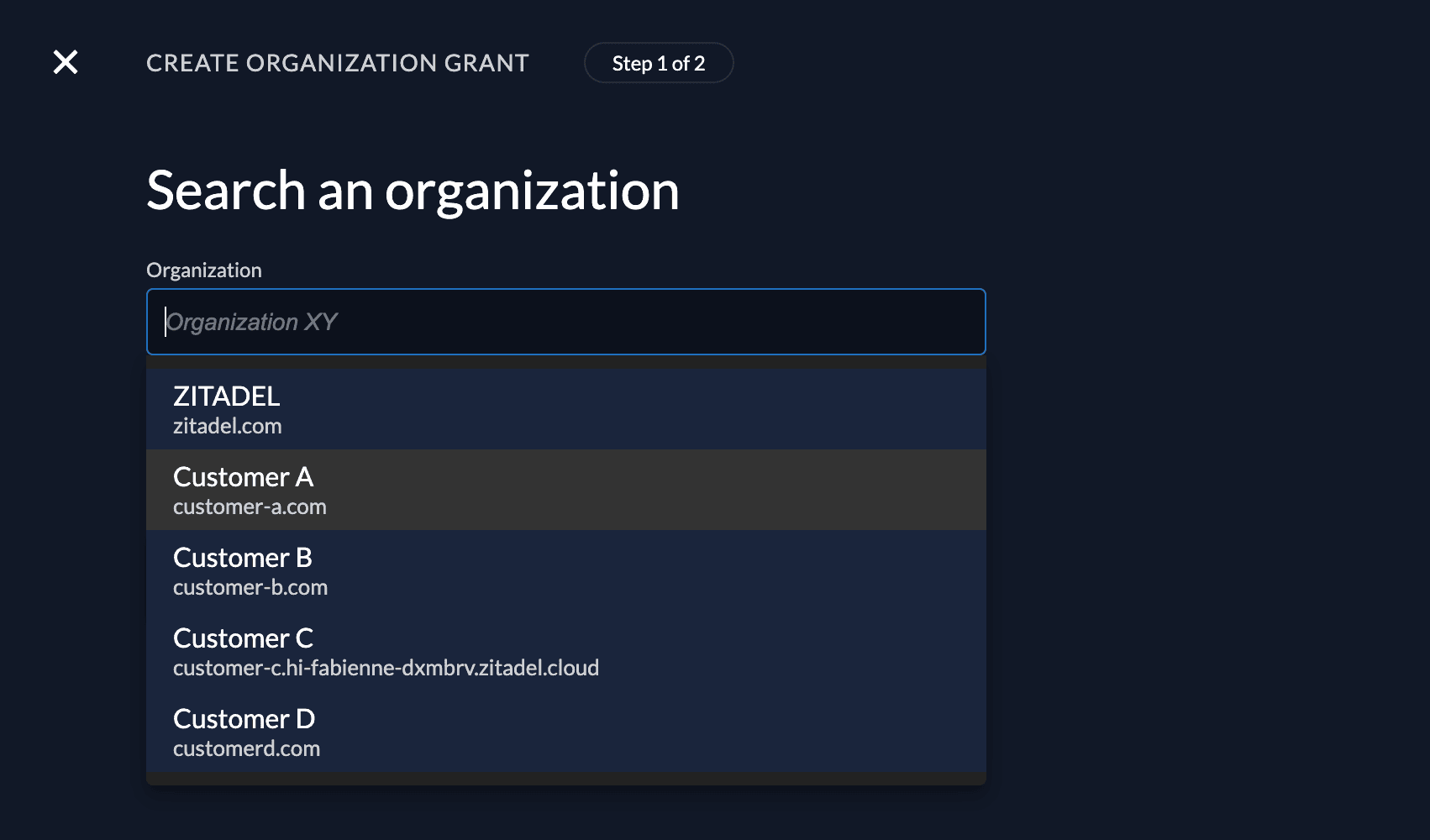
Select the organization you want to grant access to.
You can skip the role selection and click Save.
Ensure the grant appears in the overview and is marked as Active.
To avoid accidental lockout, the default project hides the "Authentication is restricted to users from organizations that have been granted access to this project" checkbox in the Management Console:
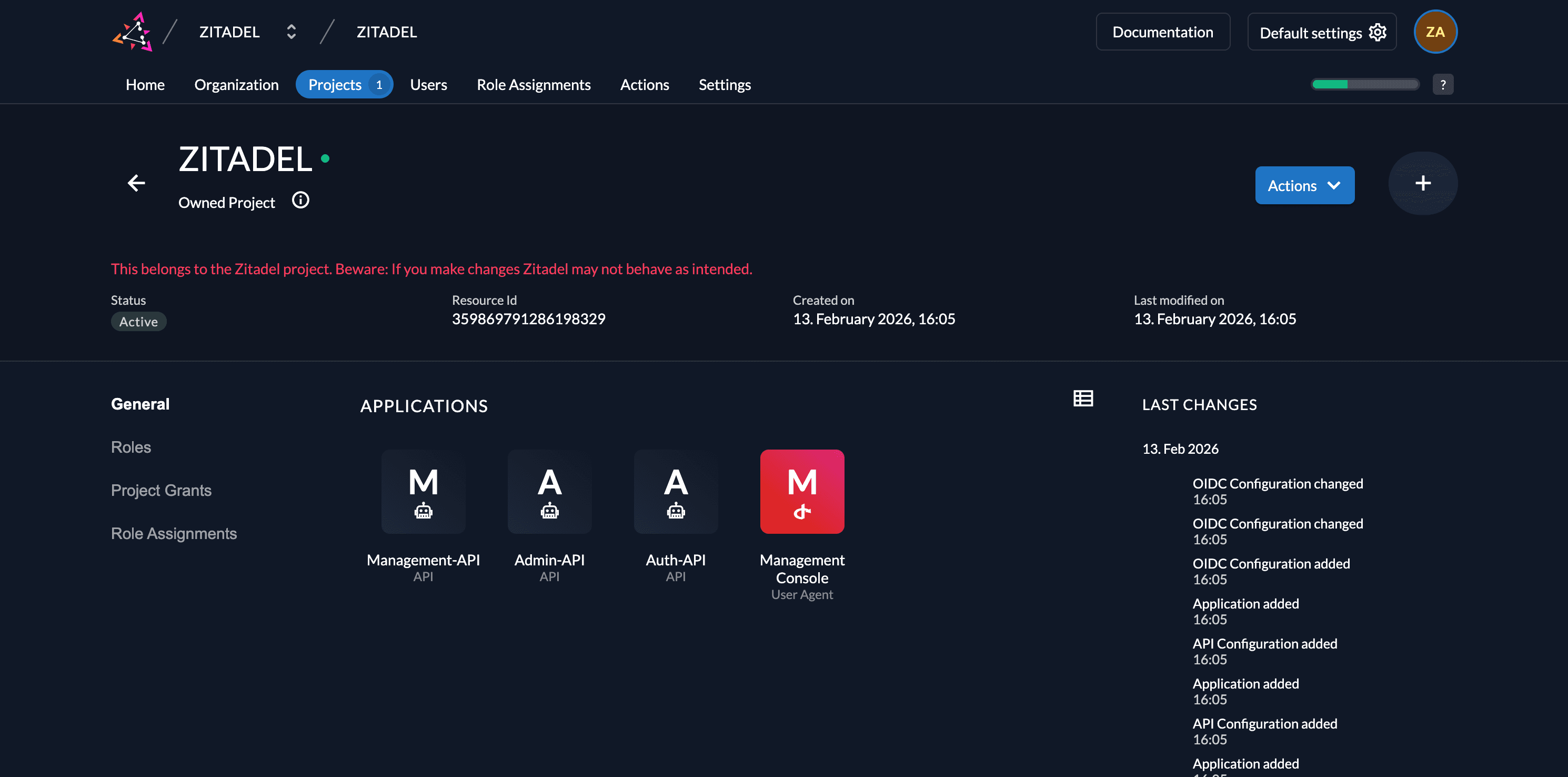
You need to use the Update Project API to configure this setting on the project.
First, you need a user with administrator permissions to change the project settings in that organization.
This means either you add the Administrator to the organization or you use an administrator on the instance level with IAM-OWNER permissions.
After that, create a Personal Access Token (PAT) for the administrator.
More detailed information about creating a PAT and Administrator Roles can be found here.
Then, send the following request:
curl -L -X PUT "https://${CUSTOM_DOMAIN}/management/v1/projects/${PROJECT_ID}" \
-H 'Content-Type: application/json' \
-H 'Accept: application/json' \
-H "Authorization: Bearer ${PAT}" \
--data-raw '{
  "name": "ZITADEL",
  "projectRoleAssertion": false,
  "projectRoleCheck": false,
  "hasProjectCheck": true,
  "privateLabelingSetting": "PRIVATE_LABELING_SETTING_UNSPECIFIED"
}'
Where:
${CUSTOM_DOMAIN}is your custom domain (e.g.,mydemo.zitadel.cloud).${PAT}is the administrator's Personal Access Token.${PROJECT_ID}is the default project's ID, which can be found in the Management Console (see screenshot above).
You can also use the V2 Update Project API to perform this action.
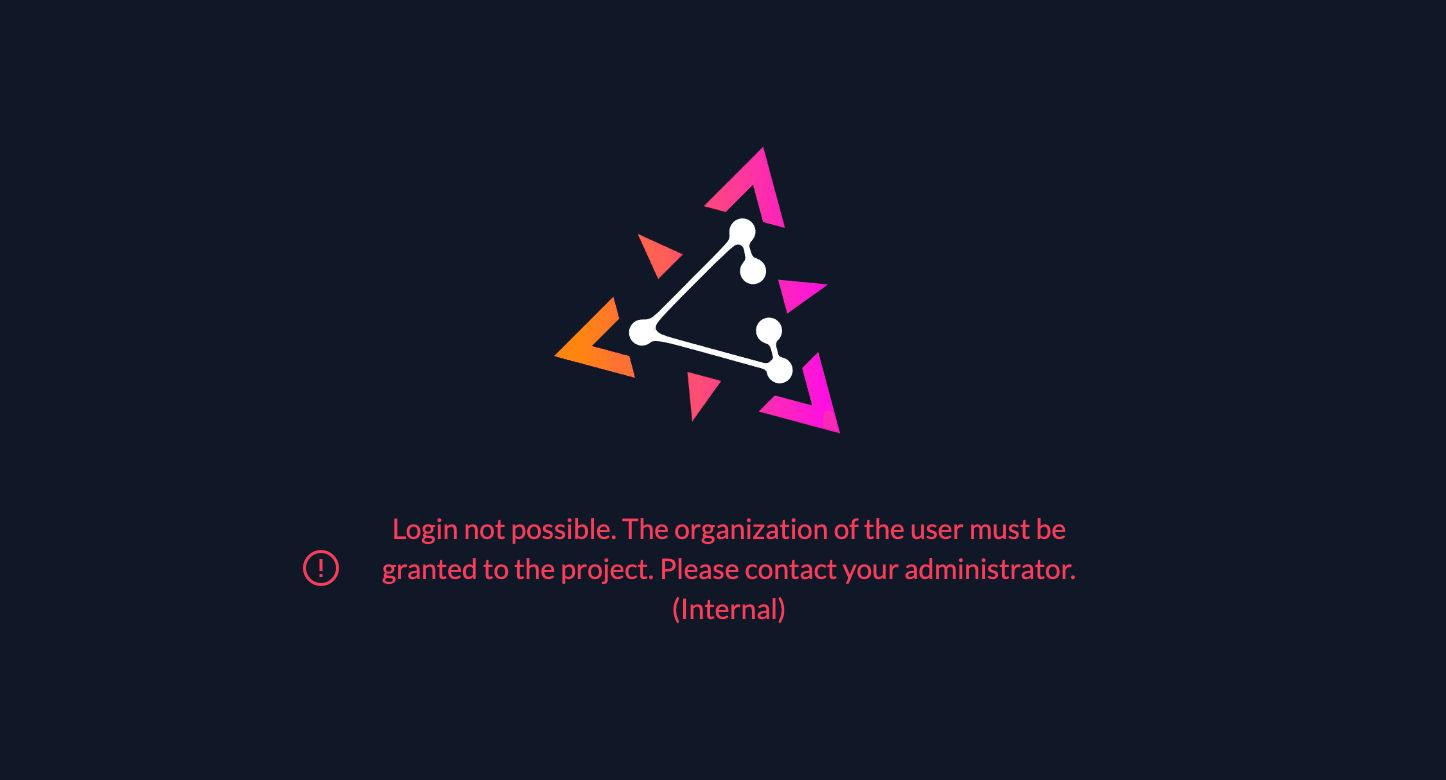
You should now be able to log in with users of the organization that have the Project Grant (in this example, users of the organization "Customer-A"). All other users should see the following error message after authentication:
Was this page helpful?